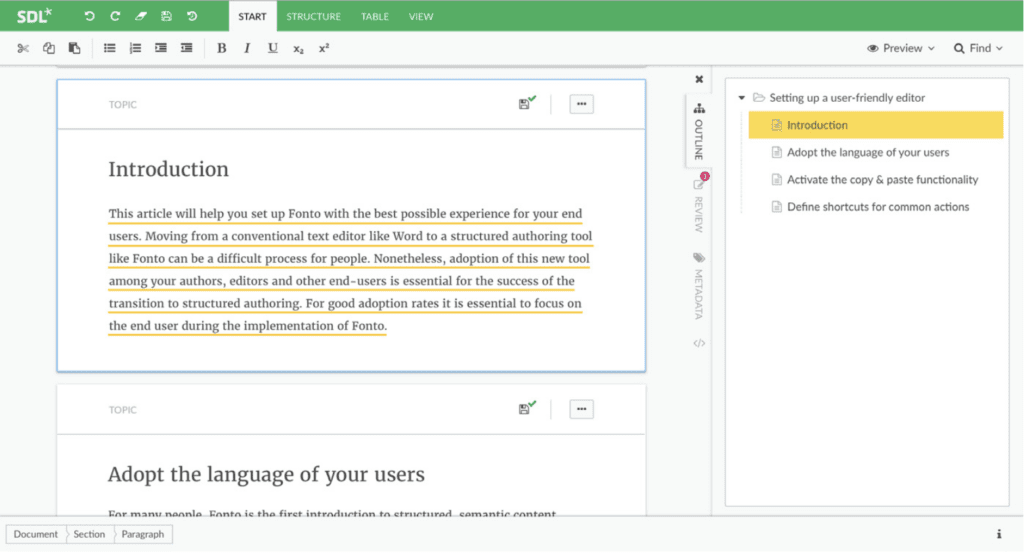

The Xopus Interface
The Xopus Interface has a couple of interesting buttons. They contain certain functionality that will be explained here.
The Xopus Toolbar
The Xopus toolbar can be found at the top of the Xopus window. The bar is divided into several groups of buttons. These groups are seperated by a seperator.
The following buttons can be found in the simple demo. Other implementations might have a different set of buttons. The following buttons however are standard or can be configured without adding buttons.
![]() |
The Xopus button is the first button on the toolbar and offers functionality to change the view, interface language, and a few other options. |
![]() |
The save button needs to be pressed to save. Alternatively Ctrl+S can be used. The function of this button depends on what is set by setSaveXMLFunction. |
![]() |
The print button will print the contents of the view. |
![]() |
The undo button becomes active as soon as you start editing a document. It can be used to undo an action. |
![]() |
Redo does the opposite of the undo button. |
![]() |
The spellChecker can be turned on by pressing this button. Having this always on might slow your editing experience. |
| This button turns on the visibility of change tracking. It is only available if changeTracking is active. | |
![]() |
Find and replace |
![]() |
This buttons shows the property panel. This panel is used to show simpletypes for elements, and therefore mostly attributes |
![]() |
The “plus” menu, or insert menu. Choose an element from this menu to insert it |
![]() |
The delete menu shows all the elements from the current context which can be deleted |
![]() |
This buttons inserts an element with the strong role. |
![]() |
This buttons inserts an element with the emphasis role. |
![]() |
This buttons inserts an element with the underline role. |
![]() |
This buttons inserts an element with the superscript role. |
![]() |
This buttons inserts an element with the subscript role. |
![]() |
This buttons inserts an element with the hyperlink role. |
![]() |
This buttons inserts an element with the table role. If there are multiple elements with the table role, this button will display a menu to insert the correct table. |
![]() |
This buttons inserts an element with the image role. |
![]() |
This button expands a menu with special characters, the contents of this menu can be configured using setSymbols. |
![]() |
This button outdents a structure which can be contained by itself |
![]() |
This button indents a structure which can contain itself |
![]() |
Use this button to move up items in a sequence, such as list items |
![]() |
Use this button to move down items in a sequence, such as list items |
![]() |
The maximize button can be used to maximize Xopus within the browser when Xopus runs in an iframe. |
![]() |
The close button has to be configured using the setExitFunction or setExitURL |
The Xopus menu
The Xopus menu is a small menu offering four options.

The top option allows you to change the view on the document. This depends on configuration. The XML source view can be slow for large documents.
The language option can be used to change the interface language.
Bring up the Xopus version dialog with the About Xopus option.
The Quit option does the same as the close button in the toolbar.
About Context
Context is very important in Xopus. A lot of the options and buttons in menus and toolbars. The context determines if something is possible. Some elements cannot be inserted inside one another, or sometimes an element is required under another element, and so options to add, move, delete or edit are grayed out.
Moving the cursor to another point in the document can completely change the interface and which options are active. This is because Xopus will never allow an action that makes the document invalid.
The insert menu

The insert menu provides options to insert elements in the context of the cursor.
From the top of the menu, seperated by lines you can see elements that can be inserted in the current element, it’s parent, and the following ancestors.
Below this are the submenus, which can configured using uiGroups.
Each menu repeats the above: options to insert elements into the position of the cursor, and the parent and ancestor elements from that point. You can see the current path of ancestors in the context bar at the bottom of the editor
The Contextbar

The context bar displays the structure of elements leading to the element which currently has the focus or cursor. In the above example the cursor is in a paragraph in the body of the topic.
Clicking on each of the items in the context bar brings up a menu with items that apply specifically to the current element.
Context bar menu

At the bottom you have four standard options. The Cut and Copy options will cut and copy the element, not the selection.
Paste will paste whatever was copied before specifically into this element.
Delete will also only delete this element. The option can be grayed out when the element cannot be deleted.
Above the standard options you will find a specific insert menu for the current element.
The Property Panel

The property panel in Xopus shows all the simply types of the current context. Simple types are mostly attributes, but some child elements can also be simple types, and therefore also be found here.
Simple types are displayed for the element of the current context and its ancestors.
Schemas with a lot of attributes might want to group some attributes in the interface, so that they are easier to find.
You can use the little menu at the top of the property panel to toggle the display of these groups.
Quick Insert Menu

The quick insert menu can be called up with Ctrl+Enter. This menu can be used to quickly insert elements into the current context. The menu does however take into account what can be inserted under parents and ancestor elements.

The menu, when it first pops up, is very long. It shows all elements that can be inserted in the current context.
By typing a few letters you can filter this list to the elements that you are searching for. As you can see to the right here, the difference between two or three letters can be big.
You can use the up and down arrow keys to navigate between options and press enter to insert the element at the locations of the cursor.
- Documentation
- › FAQ
- › The Xopus Interface